Imagine waking up at 2:00 AM, grabbing your phone to check the time, and seeing a flashing notification: “Your password was changed successfully.” Your heart drops. You didn’t change your password. Within minutes, you are locked out of your email, your social media, and potentially your bank account.
This nightmare is called an account takeover, and it happens to thousands of everyday internet users every single day.
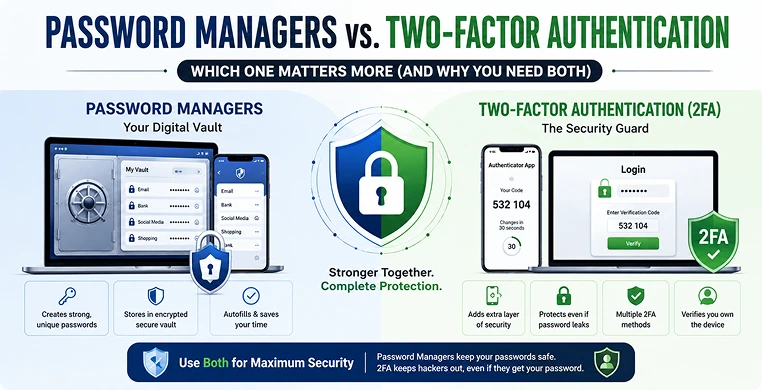
When it comes to protecting your digital life, you will constantly hear experts talk about two specific tools: password managers and two-factor authentication (often shortened to 2FA). But if you are trying to upgrade your online security, where should you start? In the showdown of password manager vs two-factor authentication, which one actually matters more?
To protect your digital world, you shouldn’t treat this like a boxing match where one tool wins. Instead, look at them as the ultimate security team. Let’s break down exactly what these tools do, how they compare, and why relying on just one is like locking your front door but leaving the windows wide open.
What is a Password Manager? (Your Digital Vault)
Let’s be honest: humans are terrible at remembering passwords. Because we have dozens of online profiles, most of us reuse the same simple phrases, or we just add a single number or exclamation point to the end of an old password.
Hackers know this. They use automated software to run millions of common word combinations through login pages in seconds. If you use simple or repeated login phrases, you are leaving your data completely exposed.
This is when a password manager saves the day. So, what is a password manager?
Think of it as a highly fortified, encrypted digital safe that lives on your phone or computer. Instead of you creating and remembering your login details, the software automatically creates strong unique passwords for every single website you use. These look like long, random strings of letters, numbers, and symbols (for example: pX9!mQ2#zK9L).
How It Works in Real Life:
- The Master Password: You only have to remember one single, highly secure phrase your master password. This acts as the key to unlock your entire digital vault.
- Autofill Passwords: When you navigate to a website or app, the manager automatically detects the page and uses its built-in tool to autofill passwords for you immediately. You never have to type or copy-paste them yourself.
- Secure Password Vault: Your credentials are saved inside an encrypted secure password vault, meaning no one not even the company making the software can read them without your master key.
A common question people ask is: do password managers get hacked? While security companies are major targets, their encryption systems are designed so securely that even if a hacker steals the data blocks, they cannot read your individual passwords without your unique master key.
What is Two-Factor Authentication (2FA)? (The Security Guard)
Now let’s look at the other side of password manager vs 2FA. Even if you have an incredibly strong password, a major company could suffer a massive data breach, accidentally leaking your secret login details straight onto the dark web. If a hacker buys that leaked information, a strong password won’t stop them from walking straight into your account.
That is exactly why you need to understand what is two-factor authentication (2FA).
Two-factor authentication which is a specific type of multi-factor authentication (MFA) adds a mandatory second step to your login process. Instead of just proving that you know the password, you also have to prove that you physically own a secondary verified device.

When you log into an account with 2FA active, the site checks multiple authentication factors:
- Something you know: Your standard username and password.
- Something you have: A temporary, physical code sent directly to your private smartphone or physical key device.
The Different Types of 2FA:
- SMS 2FA: The website texts a 6-digit verification code to your mobile number. While simple, this is the least secure method because hackers can intercept mobile signals using advanced tricks.
- Authenticator App: An app on your phone (like Google Authenticator or Bitwarden) that generates a shifting 6-digit TOTP (time-based one-time password) that changes every 30 seconds. This is highly secure and much harder to intercept.
- Hardware Security Key: A physical USB dongle (like a YubiKey) that you must plug into your computer or tap against your phone to authorize a login. This is the gold standard of login security.
- Passkeys: A newer technology that uses your phone’s built-in face scan or fingerprint lock instead of a traditional typed text string entirely.
Many users wonder: is 2FA secure, or can 2FA be hacked? While no tool is 100% perfect, 2FA makes unauthorized entry incredibly difficult. Even if a hacker across the world cracks your password, they cannot access your account because they don’t physically hold your smartphone to read the changing security code.
Two-Factor Authentication vs. Password Manager: Which Matters More?
If you had to pick just one tool to defend your identity today, which is more important password manager or 2FA?
To settle the two-factor authentication vs password manager debate, we have to look at the specific online attacks each tool is engineered to block.
| The Threat Type | What It Does | How a Password Manager Protects You | How 2FA Protects You |
|---|---|---|---|
| Credential Stuffing | Hackers take old leaked passwords from one site and test them across hundreds of other platforms automatically. | Blocks it entirely. Because every account gets a completely unique password, a leak on one site never impacts any other account. | Acts as a backup. If a hacker successfully guesses a reused password, the 2FA prompt stops them cold. |
| Data Breach | A major corporation or platform gets hacked internally, leaking customer login databases to the public. | Limits the damage. Only the single breached account is vulnerable; your other digital vaults remain locked. | Prevents entry. Even if your correct login details are leaked, the hacker cannot bypass the secondary code step. |
| Phishing Attacks | Scammers build fake clone websites (like a fake bank page) to trick you into typing your login details. | The Ultimate Defense. The manager's autofill feature will refuse to type credentials into a fake URL, instantly exposing the scam. | Vulnerable. Sophisticated phishing sites can trick you into typing both your password and your live 2FA code simultaneously. |
As you can see, looking at a password manager vs MFA setup reveals a simple truth: neither tool handles every single threat alone. A password manager is your primary line of defense against data leaks and sloppy password habits, while 2FA is your crucial safety net when a password somehow slips out.
Why You Absolutely Need Both (The Ultimate Team-Up)
Relying on one tool without the other is a massive risk. Let’s answer the most common questions people ask when trying to skip a step:
Is 2FA enough without a password manager?
No, it is not. If you ask yourself, “is 2FA enough to protect my accounts?”, the answer is a hard no. If you use weak, repeated passwords across all your apps, hackers can easily compromise multiple profiles simultaneously.
Continuously dealing with 2FA prompts on dozens of breached accounts creates huge alert fatigue, and can 2FA replace a password manager? Absolutely not, because 2FA does not help you create, track, or clean up messy, weak credentials.
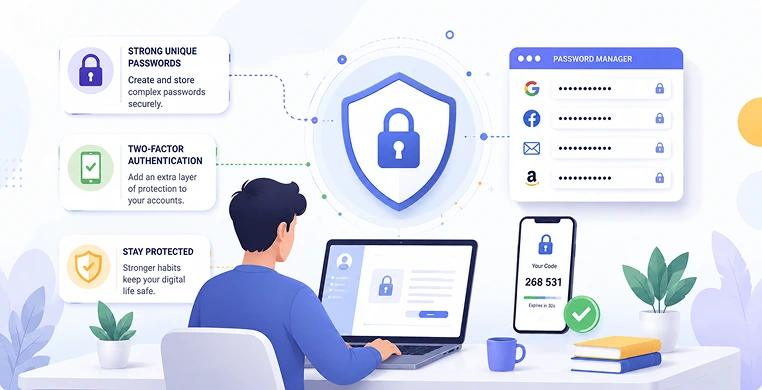
Do I still need 2FA if I use a password manager?
Yes. If I use 2FA do I still need strong passwords? Absolutely. And conversely, why you need a password manager even with 2FA comes down to human error. If you fall victim to a clever phishing email and manually type your master password into a malicious link, 2FA is the only layer left standing between the attacker and your private vault data.
When you understand how password managers and 2FA work together, your digital defense becomes incredibly tough to break. The password manager stops hackers from guessing your information, and 2FA stops them from using your credentials even if they somehow steal them.
Step-by-Step Guide: How to Setup Your Security Team
Ready to fully secure your digital footprint? Follow this simple sequence to link your security tools together safely.
1.Choose and Set Up a Password Manager:
Takes 5-10 minutes.
Download a highly-rated, verified app like Bitwarden, 1Password, or Proton Pass. Create a strong, unforgettable master password that you do not use anywhere else.
2.Secure Your Password Vault with 2FA:
Critical Safety Step.
This is the most important step to secure your accounts with password manager and 2FA. Go to your password manager’s settings and add 2FA to password manager vault. Use an independent authenticator app on your phone to generate this code. This ensures no one can open your master vault even if they find your master password.
3.Update Your Core Accounts First:
Focus on the keys to your life.
Start with your email, online banking, and primary social media profiles. Use your new manager to change your old passwords into long, randomized strings.
4.Enable 2FA Across Your Accounts:
Look for Security Settings.
On each website, go to Settings > Security and look for options to how to enable two-factor authentication on accounts. When a QR code appears on the screen, scan it using an authenticator app to lock down the account.
A Quick Tip on Convenience: Many modern platforms are best password managers that support 2FA built directly into their software. If you are asking, “should I store 2FA codes in my password manager?”, the answer is yes for regular convenience! Letting your manager handle both your password and your shifting TOTP code makes logging into daily sites incredibly fast while keeping protection high.
Key Takeaways
- Passwords alone are a massive risk: Reusing phrases across multiple sites makes you an easy target for automated credential stuffing attacks.
- Password Managers build the wall: They eliminate human memory slips by creating and autofilling strong, unique login keys for every site.
- 2FA guards the door: It requires physical proof of device ownership, meaning stolen passwords alone are useless to an attacker.
- They are stronger together: A password manager organizes your credentials safely, while 2FA provides a critical backup buffer if an enterprise platform experiences an internal data breach.
Conclusion
At the end of the day, comparing a password manager and 2FA isn’t about finding a winner. It’s about recognizing that they are two halves of an essential digital armor system. One keeps your keys unguessable; the other ensures that only you can use them.
Don’t wait for an unauthorized login alert to pop up on your phone in the middle of the night. Download a trusted manager, activate two-factor authentication on your primary email, and give yourself the peace of mind that your private digital life is locked down tight.
Frequently Asked Questions
Is SMS 2FA safe enough to use?
While receiving a text code is significantly better than having no extra security step at all, SMS-based verification is vulnerable to advanced wireless scams where hackers trick mobile carriers into routing your texts to their phones. Whenever possible, choose an authenticator app or passkey alternative instead.
What happens if I lose the phone that generates my 2FA codes?
When you first set up 2FA on any website, the platform will display single-use “Backup Codes.” Always print these out or save them in a highly secure place. If you ever lose or break your smartphone, these emergency printouts are what allow you to regain entry to your profiles.
Can a password manager generate my 2FA codes for me?
Yes! Many premium apps allow you to how to set up 2FA in a password manager directly. When you scan an account’s setup QR code using your manager app, it saves the key and automatically displays the shifting 6-digit code right alongside your saved username and password for seamless autofilling.
Do I need to turn on 2FA for absolutely every app I own?
To save time, prioritize your most critical digital assets. Make sure to enable 2FA for email, banking, social media, and any cloud storage accounts containing personal documentation. Protecting these core areas prevents hackers from using them to reset passwords on your smaller, secondary accounts.
Why use a password manager with 2FA if browsers like Chrome save my passwords for free?
While built-in browser savers are convenient, dedicated third-party apps provide stronger cross-platform sync capabilities, generate significantly more robust passkeys, and offer advanced tools that instantly alert you if your personal information is discovered in an active public data breach.