Imagine this, Your laptop crashes on a Sunday night. No warning, no beep, just a black screen. You panic for a second, then relax. “It’s fine,” you imagine, “everything is on Google Drive.”
You open Drive on your phone. Your files are there. But when you check that important report you deleted by mistake last week, it’s gone. Not in the trash. Not anywhere. Because Drive simply copied what was on your laptop, mistake and all. It never kept an older version to fall back on.
daily workflow efficiency
This is the moment most people discover a hard truth: cloud storage and cloud backup are not the same thing. They sound similar. They both live “in the cloud.” But they do very different jobs, and mixing them up can cost you your data.
Let’s break this down in plain, simple words.
What Is Cloud Storage?
Cloud storage is basically an online folder. You save a file there, and you can open it from your phone, laptop, or tablet, anywhere you have internet.
Think of Google Drive, Dropbox, or OneDrive. You drag a file in, and it shows up on all your devices. This is called file synchronization or syncing. Every time you edit the file on one device, it updates everywhere else.
Cloud storage is built for active files the documents, photos, and folders you use every day. It’s meant for easy access and sharing, not for protecting your data from disasters.
Here’s the catch: if you delete a file, or if it gets corrupted, or if ransomware locks it, that change often syncs across every device too. Cloud storage copies what you do. It doesn’t judge whether what you did was a mistake.
What Is Cloud Backup?
Cloud backup works differently. It’s not about access. It’s about protection.
A cloud backup service quietly takes snapshots of your files on a set schedule, say, once a day. It keeps these snapshots separately from your live files. So if something goes wrong today, you can go back to yesterday’s version, or the version from last week, or even last month.
This is where version history comes in. Good backup tools store several older versions of a file, not just the newest one. If ransomware encrypts your files today, you don’t panic; you simply restore yesterday’s clean copy.
Cloud backup exists for one reason: disaster recovery. Fire, theft, hardware failure, accidental deletion, a ransomware attack, cloud backup is your safety net for all of these. Many reputable services also distribute your data across multiple servers or locations, a practice called data redundancy, so one server breakdown never means total data loss.
Cloud Backup vs Cloud Storage: The Real Difference
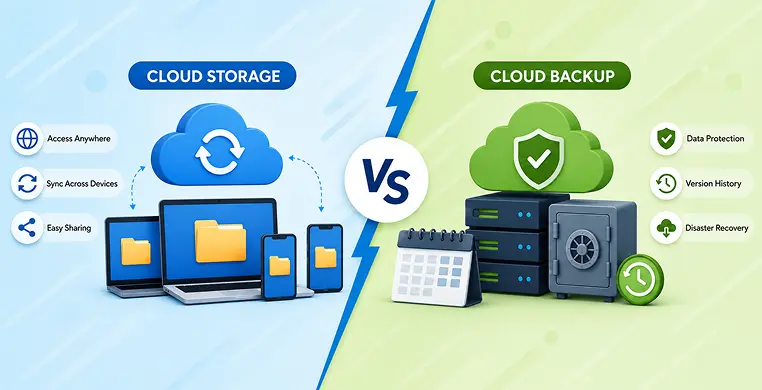
Here’s the simplest way to picture it. Cloud storage is like a shared shelf. Cloud backup is like a secured safe in different room.
| Cloud Storage | Cloud Backup | |
|---|---|---|
| Main purpose | Access and share files easily | Protect files from loss or damage |
| What it does | Syncs your active files across devices | Takes scheduled snapshots and stores them separately |
| Deleted files | Deletion often syncs everywhere | Older versions are usually still recoverable |
| Version history | Limited or none | Keeps multiple past versions |
| Best for | Everyday work files, sharing with others | Disaster recovery, ransomware protection |
| Everyday example | Google Drive, Dropbox, OneDrive | Backblaze, Acronis, IDrive |
So, is cloud storage the same as cloud backup? No. One helps you work. The other helps you recover. You genuinely need to understand syncing versus backing up to the cloud before you trust either one blindly.
How Does Cloud Backup Work?
It’s simpler than it sounds. Here’s the basic flow:
- You install a backup app on your computer or connect a backup service to your device.
- It scans your files and creates a first full copy, uploaded to secure remote servers.
- It keeps checking for changes, usually once a day, and saves new snapshots without deleting the old ones.
- If something goes wrong, you open the backup dashboard, pick a date, and restore your files exactly as they were.
That’s it. No manual copying, no remembering to save a second version yourself. It runs quietly in the background, doing the one job it exists for.
Can I Use Google Drive as a Cloud Backup?
A lot of people ask this, and it’s a fair question. Drive, Dropbox, and similar tools are convenient, but they were built for storage, not backup.
They usually offer a short trash-recovery window and limited version history, often just 30 days. That’s fine for small, everyday mistakes. But it’s not built to survive a serious event like ransomware spreading across synced folders, or a corrupted file syncing before you notice.
If you only use cloud storage, here’s what happens: your files are accessible, but not truly protected. One bad sync, and every copy can be affected. That’s the real risk of relying on storage alone.
External Hard Drive vs Cloud Backup
Some people still trust a physical external hard drive over anything online. It feels safer because you can hold it.
But hard drives fail too, and they can be lost, stolen, or damaged in a fire or flood, right along with your laptop if they’re kept in the same place. Cloud backup stores your data in remote data centers, far from your home or office, so a local disaster can’t touch it. It’s not that hard drives are bad; it’s that relying on just one copy, in just one place, is always risky.
Cloud Storage vs Backup for Small Business
For a small business, this difference matters even more. A simple ransomware attack can lock every uploaded file on a company’s storage drive within minutes. Without a separate backup, that business could lose client records, invoices, and years of work in one afternoon.
This is why so many businesses use both together: cloud storage for daily cooperation, and cloud backup as the safety net underneath it. The enterprise backup versus storage cost is usually small compared to the cost of losing critical data altogether.
Choosing the Right Cloud Backup Service
If you’re ready to buy cloud backup space, a few things are worth checking:
- Pricing per TB: Most secure cloud backup solutions charge based on storage size, so compare monthly cost against how much data you actually have.
- Encryption: Your files should be encrypted both while uploading and while sitting on the server.
- Version history length: The longer it goes back, the better your protection against slow-spreading ransomware.
- Automatic scheduling: You shouldn’t have to remember to back up manually.
A little research here goes a long way toward genuinely secure cloud backup solutions rather than just cheap storage with a different name.
Key Takeaways
- Cloud storage syncs your active files across devices for easy access and sharing.
- Cloud backup creates separate, scheduled snapshots of your files for disaster recovery.
- Deleting a file in cloud storage can delete it everywhere; cloud backup usually lets you restore an older version.
- Cloud storage tools like Google Drive are not a full substitute for real cloud backup.
- Data redundancy and version history are what make backup services reliable during ransomware attacks or hardware failure.
- Small businesses especially benefit from using storage and backup together, not one instead of the other.
Conclusion
Go back to that Sunday night laptop crash. If that person had only cloud storage, they’d have lost that deleted report for good. But if they had cloud backup running quietly in the background, they could have opened yesterday’s snapshot and had it back in minutes.
That’s the whole difference in one sentence: cloud storage keeps your files with you, cloud backup keeps them safe. You don’t have to choose just one. Most people, and most businesses, are better off using both, storage for the files you touch every day, and backup for the day something goes seriously wrong.
Frequently Asked Questions
Is cloud storage the same as cloud backup?
No. Cloud storage syncs your active files across devices for easy access. Cloud backup creates separate, scheduled copies of your files so you can recover them if something is lost, deleted, or damaged.
Do I need cloud backup if I already have cloud storage?
Yes, if you want real protection. Cloud storage is great for convenience, but it usually can’t fully protect you from ransomware, accidental deletion, or file corruption the way a dedicated backup service can.
Can I use Google Drive as a cloud backup?
You can use it as a light backup for everyday mistakes, but it wasn’t built for full disaster recovery. Its version history and recovery windows are limited compared to dedicated backup tools.
What happens if I only use cloud storage and never back up?
If a file gets deleted, corrupted, or encrypted by ransomware, that change can sync across all your devices. Without a separate backup, you may have no way to get the original file back.
Is cloud backup expensive for a small business?
Pricing usually depends on how much data you store, charged per TB. For most small businesses, the monthly cost is far lower than what it would cost to recover from a major data loss or ransomware attack.