Data is the backbone of modern operations, whether you are managing enterprise client projects or preserving irreplaceable personal archives. Yet, a single hardware failure, malware attack, or accidental spill can wipe out years of critical data in a fraction of a second.
According to industry data, hardware crashes account for roughly 40% of all data loss incidents. When implementing a data protection plan, you face a foundational technical decision: Cloud Backup vs Local Backup.
Should you deploy physical on-premise storage hardware, or leverage remote, cloud-based infrastructure? This comprehensive guide breaks down the core differences, technical advantages, and limitations of both methods to help you choose the ideal data protection architecture.
Loved What You Just Read?
Let's Build Something Just as Great — For Your Business.
From web & mobile apps to UI/UX, AI solutions, and digital marketing — NGD Technolab turns ideas into scalable, real-world products. 14+ years, 550+ projects, one team you can rely on.
What is Local Backup? (On-Premise Storage)
A local backup refers to saving copies of your digital assets onto physical hardware devices directly connected to your local network or computer. This hardware typically includes:
- External Hard Drives (HDDs): Mechanical spinning drives offering large capacities at a lower cost.
- Solid-State Drives (SSDs): High-speed flash storage devices with no moving parts.
Network-Attached Storage (NAS): Dedicated storage servers connected to a local office Wi-Fi or Ethernet network.

- Bandwidth Bottlenecks: Uploading massive datasets (such as 4K video raw files or large databases) over the air can take hours or even days if your internet provider’s upload speed is throttled.
- Compounding Subscription Costs: Cloud storage operates on a recurring pay-as-you-go model. As your data footprint grows, your monthly or annual storage bills scale up permanently.
- Zero Offline Recovery: If your local ISP (Internet Service Provider) experiences an outage, your remote files become completely inaccessible until your network connection is restored.
In practice, local backup acts as your private digital vault. You maintain 100% physical ownership of the hardware and data, requiring zero third-party reliance or remote permissions to access your files.
What is Cloud Backup? (Remote Infrastructure)
Cloud backup, also known as online or remote storage, involves transmitting your data over an active internet connection to a secure off-site data center.

These massive data storage centers are managed by enterprise technology providers such as Amazon Web Services (AWS), Google Cloud, Microsoft Azure, or specialized services like Backblaze. Instead of dedicating physical space on your desk or server rack, your data is stored securely across virtualized server environments.
Local Backup vs Cloud Backup: Technical Comparison
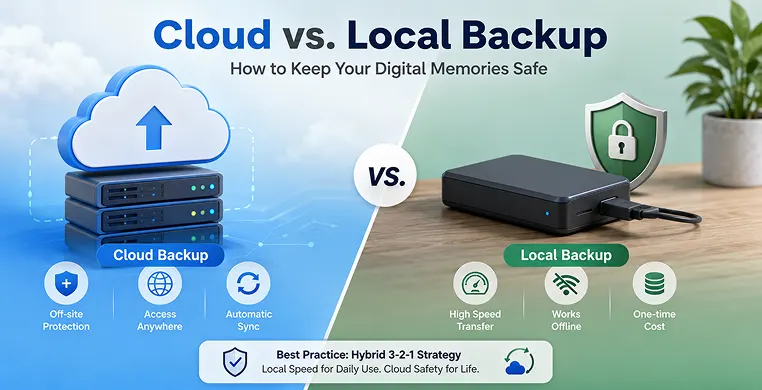
To understand how both architectures stack up against critical operational metrics, review our direct comparison matrix below:
| Technical Metric | Local Backup Solution | Cloud Backup Service |
|---|---|---|
| Data Architecture | Physical on-site hardware | Off-site cloud servers |
| Transfer Speed | Ultra-high speed via USB/Thunderbolt | Bound by local Wi-Fi/Fiber bandwidth |
| Internet Dependency | 100% offline functionality | Requires steady internet connection |
| Cost Model | Capital Expenditure (CapEx) – One-time buy | Operational Expenditure (OpEx) – Monthly subscription |
| Disaster Resilience | Vulnerable to site damage or theft | Immune to local physical disasters |
| Management Type | Manual tracking or local software scripts | Fully automated, hands-off background syncing |
Pros and Cons of Local Backup Solutions
The Advantages (Pros)
- Maximum Data Transfer Speeds: Local backups utilize physical cables (such as USB-C or Thunderbolt). This allows you to transfer terabytes of data at speeds exceeding 500 MB/s to 2,000 MB/s—far outpacing standard internet uploads.
- Zero Internet Reliance: Because the architecture is completely self-contained, you can backup or restore files during network outages or in remote areas with zero connectivity.
- Predictable One-Time Cost: Purchasing local drives operates on a fixed cost model. Once the hardware is paid for, there are no recurring monthly subscription fees or unexpected data access charges.
The Disadvantages (Cons)
- Single Point of Failure (SPOF): Because local drives typically sit in the same room as the primary computer, they share the same physical risks. A building fire, office flood, or robbery will destroy both the original data and the backup simultaneously.
- Hardware Degradation: Mechanical hard drives feature physical moving parts that naturally wear down. On average, consumer-grade external hard drives have a lifespan of 3 to 5 years before risking unannounced hardware failure.
- Manual Operational Overhead: Unless you configure complex local scheduling scripts, local backups require human intervention you must remember to physically connect the drive and execute the copy command.
Pros and Cons of Cloud Backup Services
The Advantages (Pros)
- Geographic Separation and Disaster Safety: Storing data in an off-site cloud environment removes the risk of local disasters. Even if your physical office or home is destroyed, your data remains fully intact on a remote server.
- Automated Background Synchronization: Modern cloud backup software runs continuously in the background. It monitors file changes and uploads data automatically, eliminating human error from the backup cycle.
- Universal Accessibility: Cloud storage breaks down physical barriers. Authorized users can safely access, modify, or restore backed-up files from any device worldwide via secure web logins.
The Disadvantages (Cons)
- Bandwidth Bottlenecks: Uploading massive datasets (such as 4K video raw files or large databases) over the air can take hours or even days if your internet provider’s upload speed is throttled.
- Compounding Subscription Costs: Cloud storage operates on a recurring pay-as-you-go model. As your data footprint grows, your monthly or annual storage bills scale up permanently.
- Zero Offline Recovery: If your local ISP (Internet Service Provider) experiences an outage, your remote files become completely inaccessible until your network connection is restored.
The Enterprise Standard: Implementing a Hybrid Backup Strategy
- 3: Keep at least THREE copies of your data (1 Primary, 2 Backups).
- 2: Store the backups across TWO different media types (e.g., Local Drive + Cloud).
- 1: Keep at least ONE backup copy completely Off-Site (e.g., Cloud Server).
Key Takeaways
- Local Storage excels in pure data transfer speed, cost predictability, and offline independence, but lacks resilience against site-wide physical disasters.
- Cloud Storage provides automated, hands-off background execution and global data accessibility while securing files completely away from local physical threats.
- A Single Backup Method creates an operational vulnerability; hardware failure or network loss can instantly cut off data access.
- The Best Practice is to implement a hybrid 3-2-1 strategy combining local speed for fast recovery with cloud backup for bulletproof data redundancy.
Conclusion
Securing your digital footprint is no longer optional it is a critical necessity for operational continuity. When evaluating cloud backup vs local backup, it is clear that neither solution is a silver bullet on its own. Local backups provide the unmatched speed and offline control required for immediate, day-to-day file restoration. Meanwhile, cloud storage offers automated, off-site resilience that safeguards your files from physical theft, localized disasters, and mechanical hardware failures.
Ultimately, the most secure data protection plan avoids single points of failure. By moving away from an either-or mindset and adopting a hybrid framework combining the localized speed of physical hardware with the automated security of remote cloud infrastructure you guarantee that your critical documents, business records, and media archives remain completely bulletproof against any data loss scenario.
Frequently Asked Questions
Is cloud backup safer than an external hard drive?
Do I need an internet connection for my local backup to work?
No, not at all. Local backups work completely offline. You just plug your external hard drive or USB drive directly into your computer with a cable, and you can copy your files instantly—even if your Wi-Fi is completely turned off.
Will a cloud backup slow down my computer or internet?
It can a little bit, but only while it is actively uploading huge files for the first time. Most modern cloud apps are smart—they run quietly in the background and only upload new changes when you aren’t using much internet, so you barely notice them working.
How often should I back up my computer files?
If you are using a cloud backup, it usually happens automatically every day. For a local hard drive, a good rule of thumb is to plug it in and copy your files at least once a week. A simple trick is to do it every Sunday evening so your files are always ready for the week ahead.
Can I just use a free cloud storage plan like Google Drive or iCloud?
Free plans are great for starting out, but they give you a very small amount of space (usually around 5GB to 15GB). This is enough for basic text documents, but if you have thousands of phone photos or videos, you will likely need to pay a small monthly fee to get more space.