
Every Monday, Priya opens three different tabs before 9 AM. She copies numbers from an email into a spreadsheet, checks a form response sheet, and then sends the same “reminder” message to five people, one by one. By the time she’s done, an hour is gone, and she hasn’t even started her real work yet.
If this sounds familiar, you’re not alone. Most people don’t hate their jobs they hate the small, repeated parts of their jobs that feel like busywork. The good news is you don’t need a computer science degree to fix this. You just need to know how to automate repetitive tasks at work, and today, that’s easier than it’s ever been.
This guide will walk you through exactly how to automate boring tasks at work, step by step, using tools that don’t need a single line of code.
What Is Task Automation, Really?
Task automation means letting software do a repeated job for you, automatically, without you clicking through it every time. Instead of you copying data from one app to another, the software watches for a trigger and does it for you.
No-code automation is the beginner-friendly version of this. It uses visual, drag-and-drop tools instead of programming. You connect apps like Gmail, Google Sheets, or Slack using simple building blocks, and the tool handles the technical part behind the scenes.
Think of it like setting up dominoes. You arrange them once. After that, one push (the trigger) and the rest fall into place on their own.
Signs You're Doing Too Much by Hand
Some tasks are so normal that we stop noticing they’re repetitive. Here are common examples of automated tasks in the workplace things you’re probably still doing manually:
- Copying form responses into a spreadsheet
- Sending the same follow-up email every week
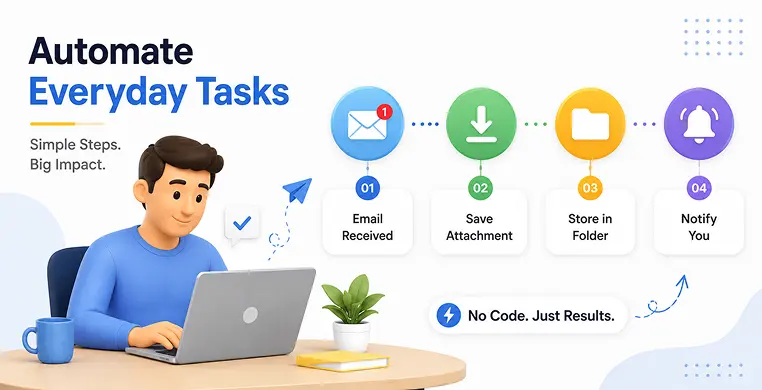
- Downloading email attachments and saving them into folders
- Creating weekly or monthly reports from raw data
- Posting reminders in Slack or Teams by hand
- Updating a task tracker after every meeting
If you nodded at two or more of these, you already have a starting list.
Step 1: Find What's Eating Your Time (Task Audit)
Before automating anything, you need a task audit a simple habit of tracking what you do during your workday for about a week.
You don’t need special software for this. A notes app or a simple sheet works fine. For every task, write down:
- What the task is
- How often you do it
- How long it takes
- Whether the steps are always the same
At the end of the week, look for patterns. Tasks that repeat often, follow the same steps every time, and don’t need real judgment are your best automation candidates.
Step 2: Pick What's Worth Automating First (Value vs Effort)
Not every repetitive task deserves to be automated first. This is where a simple value vs effort matrix helps you decide what to automate at work.
Ask two questions about each task on your list:
- Value: How much time or stress will automating this save?
- Effort: How hard is it to set up?
Then sort your tasks into four groups:
| Low Effort | High Effort | |
|---|---|---|
| High Value | Do this first | Plan for later |
| Low Value | Nice to have | Skip for now |
Always start with tasks that are high value and low effort. This gives you a quick win, builds your confidence, and shows the real automation ROI early the time saved, the errors avoided, and sometimes even direct cost savings.
Step 3: Understand How Automation Actually Works
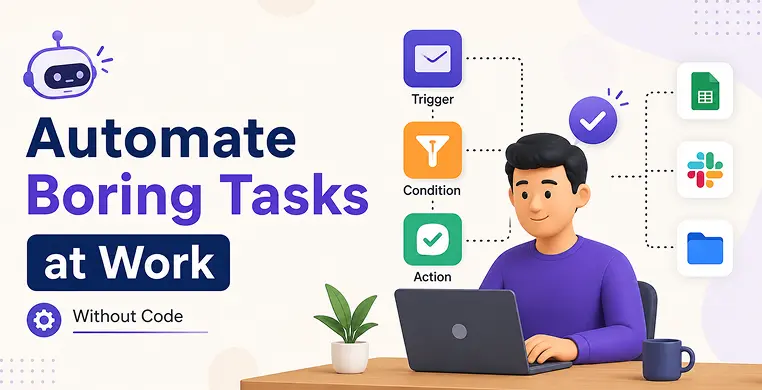
Here’s the part that sounds technical but really isn’t. Every automation, no matter which tool you use, follows the same simple pattern:
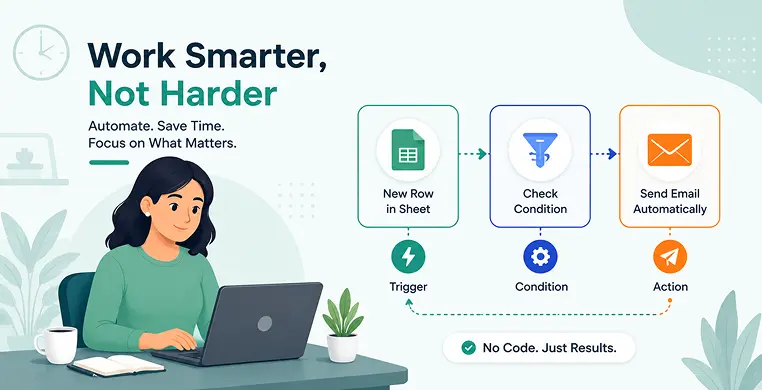
Trigger → Condition → Action
- Trigger is the event that starts everything. For example, “a new row is added to a spreadsheet” or “an email arrives with an attachment.”
- Condition is an optional check, like an if-then rule. For example, “only continue if the email subject contains the word ‘Invoice.'” This is what people mean by conditional logic or branching workflows the automation makes small decisions on its own.
- Action is what happens next. For example, “save the attachment to a folder” or “send a Slack message.”
Good tools also let you plan for error handling in workflows what should happen if a step fails. A simple example: if an email fails to send, the tool can notify you instead of silently failing. This one habit saves a lot of headaches later.
Step 4: Pick a No-Code Tool
Once you understand triggers, conditions, and actions, choosing a tool becomes much easier. Some of the best no-code workflow automation tools for work, especially for beginners:
- Zapier: Known for being the easiest to start with. Huge library of app connections and a simple visual builder.
- Make (formerly Integromat): More visual and flexible, good once you want slightly more complex, branching workflows.
- Microsoft Power Automate: A strong pick if your company already uses Microsoft 365, since it connects smoothly with Outlook, Excel, and Teams.
If you’re comparing Zapier vs Make vs Power Automate, a simple rule of thumb helps: choose Zapier for simplicity, Make for flexibility, and Power Automate if you’re already living inside Microsoft tools. All three use a drag-and-drop, visual builder, so you’re clicking and connecting boxes, not writing code.
Newer tools are also adding no-code AI workflow features, letting you describe what you want in plain language and having the tool suggest the steps for you useful if you’re just getting started and not sure how to structure a workflow yet.
Real Automation Ideas You Can Copy Today
You don’t need to imagine these from scratch. Here are simple, tested examples of workflow automation without coding:
- Automate data entry without coding: When someone fills out a form, automatically add their answers as a new row in a spreadsheet.
- Automate emails without coding: Save email attachments straight to a cloud folder, or send an automatic reminder email three days before a deadline.
- Automate report generation, no code needed: Pull numbers from a spreadsheet or CRM every Monday and turn them into a ready-made report or dashboard update.
- Simple office automation: Connect a booking tool like Calendly to Slack, so your team gets notified the moment a new meeting is booked.
These are some of the most common no-code workflow automation examples for non-technical users, and each one usually takes less than 15 minutes to set up once you know the tool.
Loved What You Just Read?
Let's Build Something Just as Great — For Your Business.
From web & mobile apps to UI/UX, AI solutions, and digital marketing — NGD Technolab turns ideas into scalable, real-world products. 14+ years, 550+ projects, one team you can rely on.
Step 5: Build, Test, and Reuse
Once your first automation is running, don’t stop there. Two habits make automation actually scale across your work:
- Test before you trust it. Run your workflow with sample data first, and check what happens if a step fails.
- Save it as a template. Most no-code tools let you duplicate or share a working automation. These reusable components and templates mean the next similar task takes minutes, not hours, to set up.
Over time, this is how a single small automation turns into a small system that quietly runs your repetitive work in the background.
Mistakes Beginners Often Make
- Trying to automate a task that changes every time (automation works best on tasks with fixed steps)
- Skipping the testing step and finding out something broke a week later
- Automating a low-value task first, instead of one with real time savings
- Not adding any error handling, so a small failure goes unnoticed for days
Key Takeaways
- Task automation lets no-code tools handle repeated work for you, without any programming.
- Start with a task audit to find out where your time actually goes.
- Use a value VS effort matrix to decide what to automate at work first.
- Every automation follows the same pattern: trigger, condition, action.
- Zapier, Make, and Power Automate are strong starting points, each suited to slightly different needs.
- Testing and saving templates turns a single automation into a reusable system.
Conclusion
Priya’s Monday doesn’t have to look the same forever. Once she set up one simple workflow form responses automatically dropping into her spreadsheet that one hour of copying and pasting disappeared completely. She didn’t write a single line of code.
She just followed the same steps you just read: find the repeat task, pick the right one to start with, understand the trigger-condition-action pattern, and let a no-code tool do the rest.
You don’t need to automate all of it at once. Pick one boring task this week, set it up, test it, and let it run. That one small change is usually enough to show you how much time you’ve been giving away to busywork and how easily you can take it back.
Frequently Asked Questions
What is task automation in simple words?
Task automation means letting software repeat a task for you automatically, based on a trigger, instead of you doing it manually every time.
Can I automate tasks at work without knowing how to code?
Yes. No-code tools like Zapier, Make, and Power Automate use visual, drag-and-drop builders, so you connect apps and set rules without writing any code.
How do I choose which tasks to automate first?
Use a value vs effort matrix. Start with tasks that repeat often, take real time, and have simple, fixed steps these give you the fastest win.
What's the difference between Zapier, Make, and Power Automate?
Zapier is the easiest for beginners, Make offers more flexibility for complex workflows, and Power Automate works best if your company already uses Microsoft 365.
What are some easy automation ideas to start with?
Try saving email attachments automatically, sending form responses straight to a spreadsheet, or connecting a booking tool to Slack for instant meeting notifications.